'%20fill='%23171717'%3e%3cpath%20clip-rule='evenodd'%20d='m122.333%20203.667h-40.6663c-38.3385%200-57.5128%200-69.418-11.916-11.90516-11.915-11.915326-31.079-11.915326-69.418v-40.6663c0-38.3385-.000001-57.5128%2011.915326-69.418%2011.9153-11.90516%2031.1812-11.915326%2069.723-11.915326%206.161%200%2011.0918%200%2015.25.172833-.1355.813333-.2033%201.640223-.2033%202.480663l-.1017%2028.81233c0%2011.1528%200%2021.0145%201.0675%2028.9547%201.159%208.6111%203.8128%2017.2223%2010.8478%2024.2576%207.015%207.015%2015.636%209.6787%2024.248%2010.8377%207.94%201.0675%2017.801%201.0675%2028.954%201.0675h41.196c.437%205.4293.437%2012.0983.437%2020.9743v4.442c0%2038.339%200%2057.513-11.916%2069.418-11.915%2011.906-31.079%2011.916-69.418%2011.916z'%20fill-rule='evenodd'/%3e%3cpath%20d='m176.745%2057.4396-40.26-36.2239c-11.458-10.3191-17.181-15.48381-24.227-18.17798l-.091%2027.79568c0%2023.9628%200%2035.9493%207.442%2043.3913s19.428%207.442%2043.391%207.442h36.397c-3.681-7.1573-10.289-13.0946-22.652-24.2271z'/%3e%3c/g%3e%3c/svg%3e)
'%20fill='%23fafafa'%3e%3cpath%20clip-rule='evenodd'%20d='m122.333%20203.667h-40.6663c-38.3385%200-57.5128%200-69.418-11.916-11.90516-11.915-11.915326-31.079-11.915326-69.418v-40.6663c0-38.3385-.000001-57.5128%2011.915326-69.418%2011.9153-11.90516%2031.1812-11.915326%2069.723-11.915326%206.161%200%2011.0918%200%2015.25.172833-.1355.813333-.2033%201.640223-.2033%202.480663l-.1017%2028.81233c0%2011.1528%200%2021.0145%201.0675%2028.9547%201.159%208.6111%203.8128%2017.2223%2010.8478%2024.2576%207.015%207.015%2015.636%209.6787%2024.248%2010.8377%207.94%201.0675%2017.801%201.0675%2028.954%201.0675h41.196c.437%205.4293.437%2012.0983.437%2020.9743v4.442c0%2038.339%200%2057.513-11.916%2069.418-11.915%2011.906-31.079%2011.916-69.418%2011.916z'%20fill-rule='evenodd'/%3e%3cpath%20d='m176.745%2057.4396-40.26-36.2239c-11.458-10.3191-17.181-15.48381-24.227-18.17798l-.091%2027.79568c0%2023.9628%200%2035.9493%207.442%2043.3913s19.428%207.442%2043.391%207.442h36.397c-3.681-7.1573-10.289-13.0946-22.652-24.2271z'/%3e%3c/g%3e%3c/svg%3e)
Merge Excel Files Tool — Free, Instant, Private
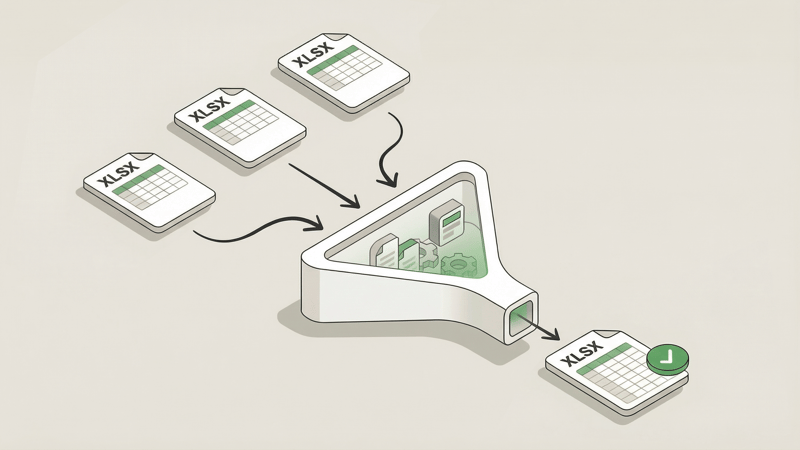
Combining multiple Excel files into one shouldn't require a degree in spreadsheet wizardry.
Yet here you are, opening file after file, copying rows, pasting them into a master spreadsheet, praying you didn't miss anything or accidentally duplicate a header row.
There's a better way.
Introducing Bank PDF Converter's free Excel Merge tool. Combine multiple Excel files into one in seconds—right in your browser. No uploads, no sign-ups, no privacy concerns.
Why We Built This
Merging Excel files is one of those tasks that sounds trivial until you're doing it. Especially when you're dealing with monthly reports from multiple departments, data exports from different systems, or client files that all need to live in one place.
The manual approach? Open, copy, paste, repeat. It's tedious, error-prone, and guaranteed to make you question your life choices when you realize you pasted over the header row for the third time.
And the online tools? Most want you to upload your files to their servers. That's a hard pass when you're working with financial data, HR records, or anything you wouldn't want floating around someone else's cloud.
We built this Excel merge tool because your data should stay on your device—and your time shouldn't be wasted on copy-paste marathons.
Key Features
100% Browser-Based
Your files never leave your device. Everything processes locally in your browser—no server uploads, no data collection, no third parties touching your information. When you're merging confidential spreadsheets, privacy isn't a nice-to-have.
Instant Merging
No waiting for server processing. The merge happens immediately on your machine. Drop your files, configure your options, download the result. Done in seconds.
Drag-to-Reorder
File order matters when merging. Drag and drop your files into the exact sequence you want before merging. The first file's header row is preserved, and subsequent headers are automatically skipped.
CSV or Excel Output
Download your merged file as Excel (.xlsx) or CSV—your choice. No need for a separate conversion step.
Smart Cleaning Options
Fine-tune your merge with built-in options:
- Remove empty rows — Automatically strip out blank lines
- Remove duplicate rows — Eliminate identical rows across your files (or use our dedicated CSV Deduplicator for more granular control)
- Add source filename column — Track which file each row came from
Header Mismatch Detection
Merging files with different columns? The tool warns you before proceeding, so you can decide whether to continue or fix the source files first. No more surprises when data ends up in the wrong columns.
Supports .xlsx and .xls
Both modern Excel (.xlsx) and legacy Excel (.xls) formats work. Drop them in together if you need to—the tool handles both.
Free, No Account Required
Use it as much as you want. No sign-up, no processing limits, no hidden fees. We built it to be genuinely useful—not to harvest emails or sell premium plans.
Real-World Use Cases
Monthly Report Consolidation
Pulling together sales reports, expense logs, or analytics exports from multiple months or departments? Merge them into a single file for easier analysis and cleaner presentations.
Multi-Source Data Aggregation
Combining data from different systems, team members, or vendors? Drop all your Excel files in, reorder as needed, and merge into one unified dataset.
Client Data Compilation
Receiving Excel files from multiple clients that need to be combined for analysis? Merge them while keeping track of which rows came from which file using the source column option.
Data Migration Prep
Preparing data for import into a new system? Merge your source files, clean up duplicates and empty rows, then export in the format your target system expects.
How to Use It
- Go to the tool — Open the Excel Merge Tool
- Drop your files — Drag and drop your Excel files (up to 10 MB each, 50 MB total). Reorder them if needed.
- Configure and merge — Select your options, choose CSV or Excel output, and download your combined file.
That's it. Three steps, no friction.
Excel vs. CSV Merge Tools
We also offer a CSV Merge Tool if you're working with CSV files specifically. Both tools share the same privacy-first, browser-based approach—just pick the one that matches your file format.
Note that the Excel merge tool works with raw data values only. Formulas, cell styles, conditional formatting, and other Excel features aren't preserved in the merged output. If you need to maintain complex formatting, this tool focuses on combining the data itself.
Complete Your Data Toolkit
The Excel Merge Tool pairs well with our other free tools:
- CSV Merge Tool — For combining CSV files instead of Excel
- CSV Deduplicator — Remove duplicate rows with granular column selection
- Excel to CSV Converter — Convert Excel files to CSV format
- CSV to Excel Converter — Turn CSV files into formatted Excel spreadsheets
Try It Now
Ready to merge? Head over to our Excel Merge Tool and combine your files in seconds.
And if you're working with bank statement PDFs and need to extract transaction data into CSV or Excel format, check out Bank PDF Converter—our AI-powered tool that handles the heavy lifting of parsing complex bank statements with validation so you can trust the data.